Deye System Work Modes
One of the most important settings on your new Deye hybrid inverter is the System Work Mode. While WISE Energy always sets up, pre-configures and tests your inverter before handover, situations change — so it helps to understand what these settings actually do. The System Work Mode controls the order in which your inverter uses and distributes power between your home loads, your battery, and the grid (or a generator).
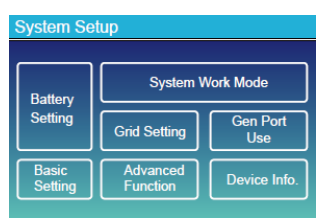
How to open the System Work Mode menu
1. Tap the cog / settings symbol in the top-right corner of the inverter touchscreen.
2. Select System Work Mode.
Reading your home energy screen
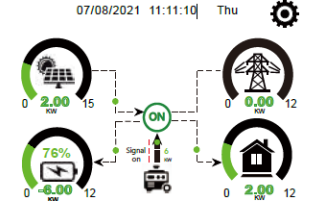
The main screen shows live power flow between your solar, the grid, your battery and your home. Green arrows show where energy is moving right now — for example, solar charging the battery and powering the house, with any surplus going to the grid.
The three core work modes
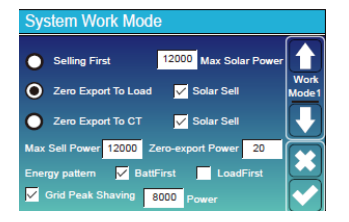
The top of the menu has three radio-button options. These have the biggest impact on how your system behaves:
Zero-export Power
If you need true zero export, it is best to allow a tiny trickle feed from the grid. This stops the inverter’s internal controller from accidentally pushing energy back to the grid. Set this between 20–100W — a small number of watts your inverter will constantly draw when the grid is available.
Energy Pattern: Battery First vs Load First
Max Solar Power
Sets the maximum DC input power accepted from your solar panels (this is different from your export limit). Lowering it de-rates your MPPTs, so it is best to set this to the maximum regardless of array size, unless you have a specific reason not to.
Grid Peak-shaving
When enabled, this limits the power drawn from the grid to a set value. If your home’s demand exceeds that value, solar and battery power top up the difference. Note: if solar + battery still cannot meet demand, the inverter will draw past your set limit to keep your home running.
Commenting is not enabled on this course.