⚠ For accredited installers. This guide is for qualified solar/battery installers commissioning equipment. WISE Energy provides it for reference only, cannot warrant its accuracy or suitability for your installation, and accepts no liability for any loss or damage arising from its use. Always follow the battery and inverter manufacturers' documentation and the relevant standards.
This guide shows how to make the CAN communications cable for the TCSN CN51.2-100 battery and set its comms protocol so it talks to your inverter.
Only the first battery needs this. Programming is only required on the first battery — the one running the CAN uplink to the inverter. Any additional batteries linked together by RS485 do not need to be programmed.
What you will need
Victron cable ASS030572050
One RJ45 plug and a crimp tool
A Windows PC
The BMS_TOOLS software (download below)
1
Make the cable. Take a Victron ASS030572050 lead, cut one end and crimp an RJ45 plug onto it. On the RJ45, only Yellow (Pin 8) and Orange (Pin 7) are used — these carry CAN-H and CAN-L. Leave all other pins unconnected.Crimp the RJ45 so only Pin 7 (Orange) and Pin 8 (Yellow) are wired for CAN. Confirm CAN-H / CAN-L orientation against your inverter manual.
2
Set the DIP switches. On the battery, set the first three DIP switches DOWN and the 4th switch UP.
3
Get the software. Download the BMS_TOOLS software, then extract it using the password below and run the BMS_TOOLS application.
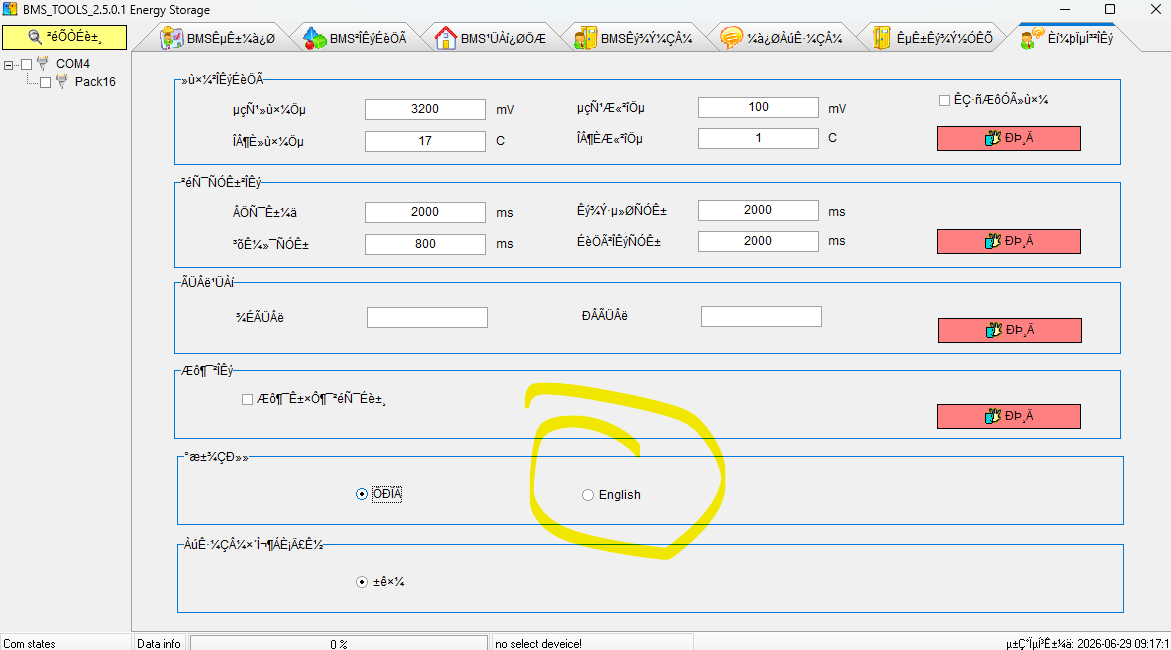
Set the language to English. Open the Software Parameter tab and select English.Software Parameter tab — select English
5
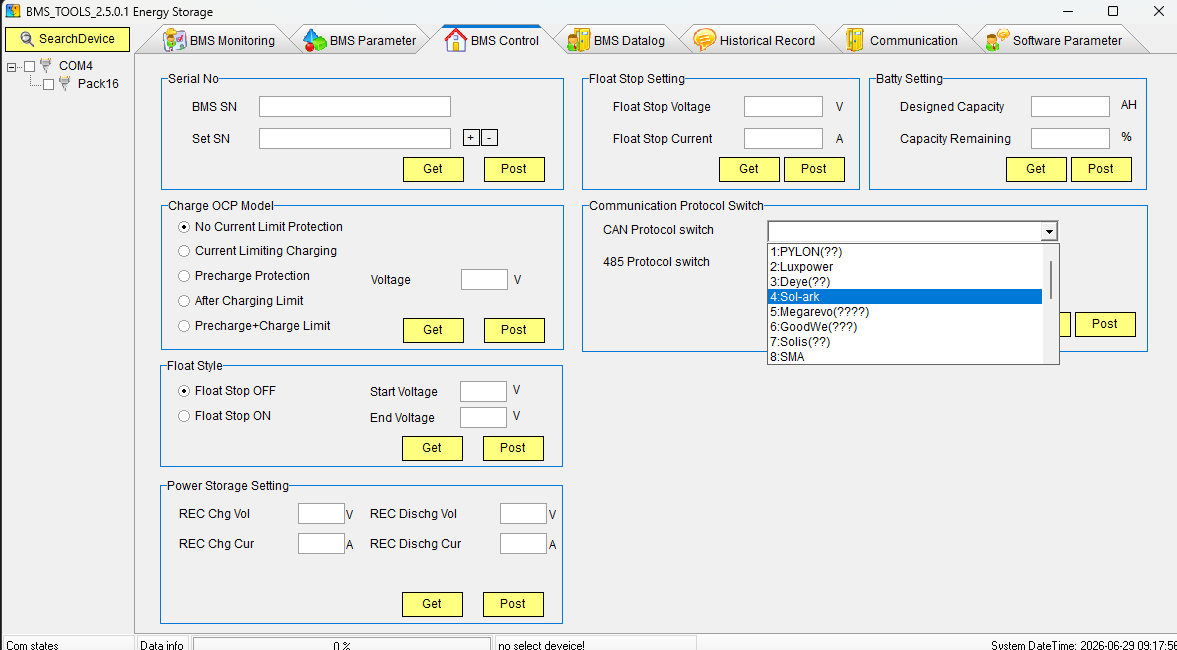
Set the protocol and save. Go to BMS Control → CAN Protocol switch and choose the protocol that matches your inverter (e.g. PYLON, Luxpower, Deye, Sol-ark, Megarevo, GoodWe, Solis, SMA), then click Post.BMS Control — choose the CAN protocol for your inverter, then click Post
Need a hand? Call the WISE Energy team on 1300 368 331.