Set up the Victron VRM App (Invited or From Scratch)
Please note. This guide is general help for setting up Victron VRM monitoring. Do not change inverter, charger or battery settings yourself. WISE Energy provides this guide for reference only and cannot warrant its accuracy for your specific system.
The free Victron VRM app shows your battery charge, solar and power use on your phone, from anywhere. Setup takes about 5 minutes. Pick the pathway that matches you.
| Pathway A — You got an invitation email Your installer (usually WISE) has already added your system. Once you register, it's already in your account. | Pathway B — Setting up from scratch No invitation. You add the system yourself using its VRM Portal ID. |
Pathway A — Invited by your installer
No VRM Portal ID needed. Your system appears automatically once you register.
1
Find the invitation email
It comes from Victron's VRM Portal and names your installation. Check your spam or junk folder if it isn't in your inbox.
2
Open the link and create your account
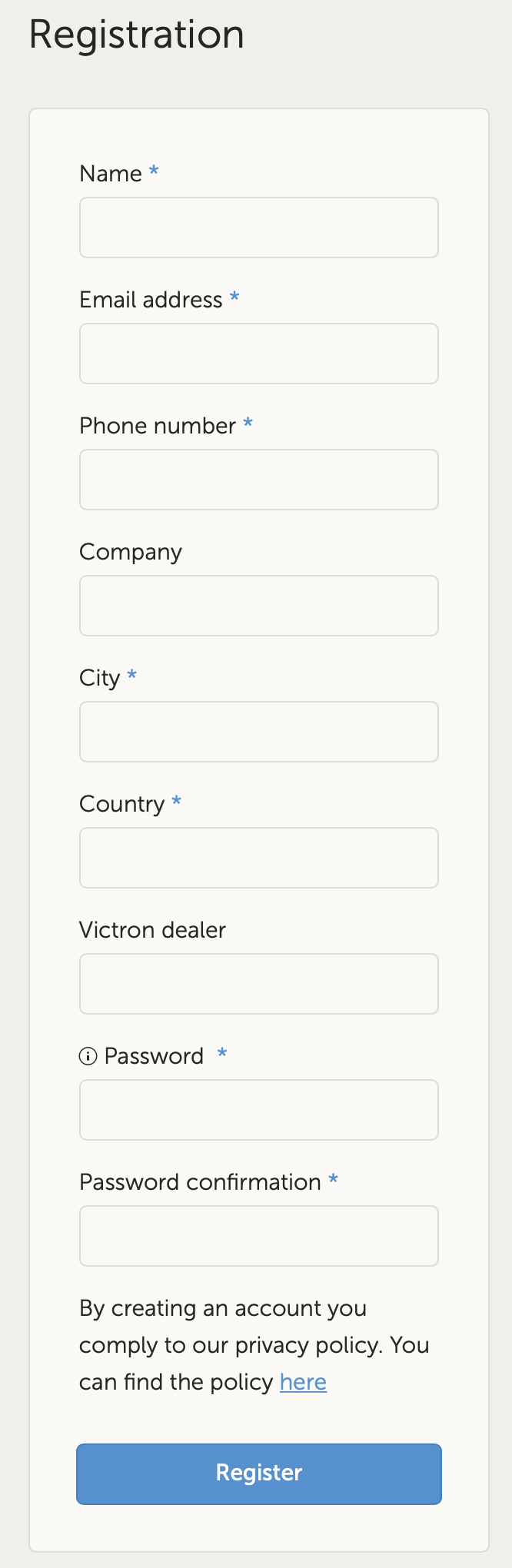
The link takes you to the VRM registration page. Enter your name and a password, using the same email address the invitation was sent to, then tap Register.
3
Activate your account
Open the confirmation email from VRM and tap the activation link.
4
Install the VRM app
Search VRM in the App Store or Google Play and install the app from Victron Energy.
5
Log in — your system is already there
Open the app, log in with the email and password from step 2, and tap your installation to see your dashboard.
Pathway B — Setting up from scratch
You need your system's VRM Portal ID (12 letters and numbers) and the system connected to the internet.
1
Install the VRM app
Search VRM in the App Store or Google Play and install the app from Victron Energy.
2
Create a free account
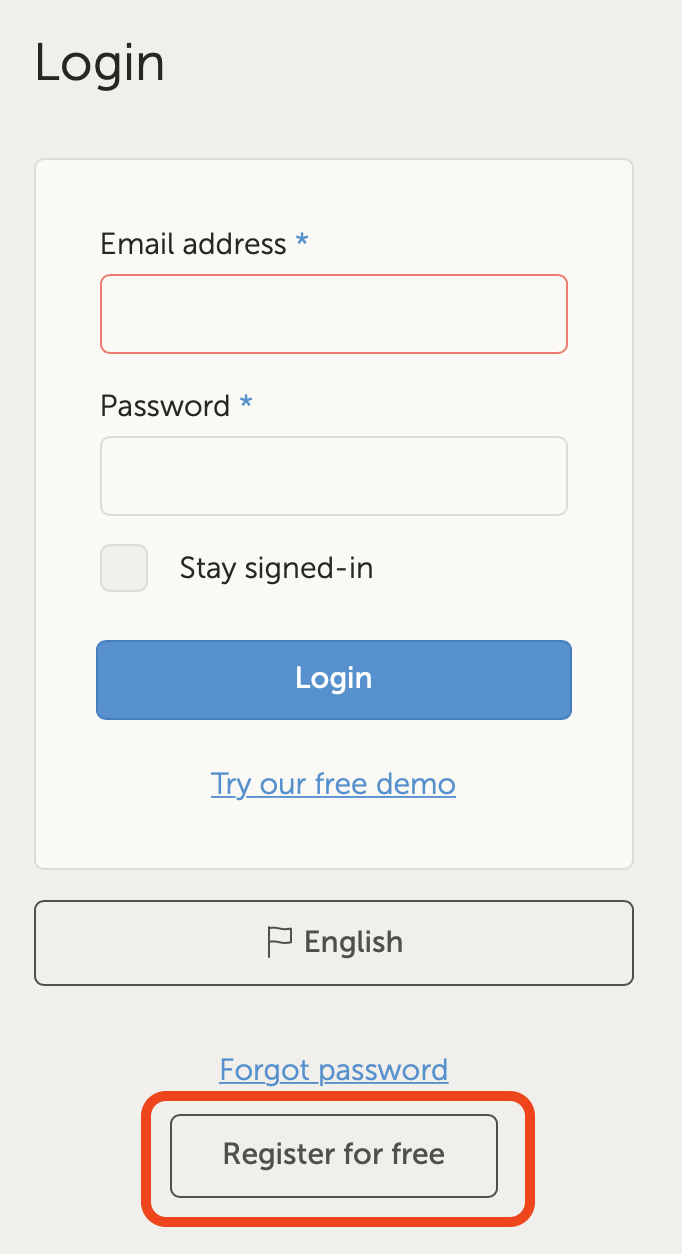
Go to vrm.victronenergy.com, tap Login, scroll down and tap Register for free. Enter your details, tap Register, then activate your account from the email.
3
Find your VRM Portal ID
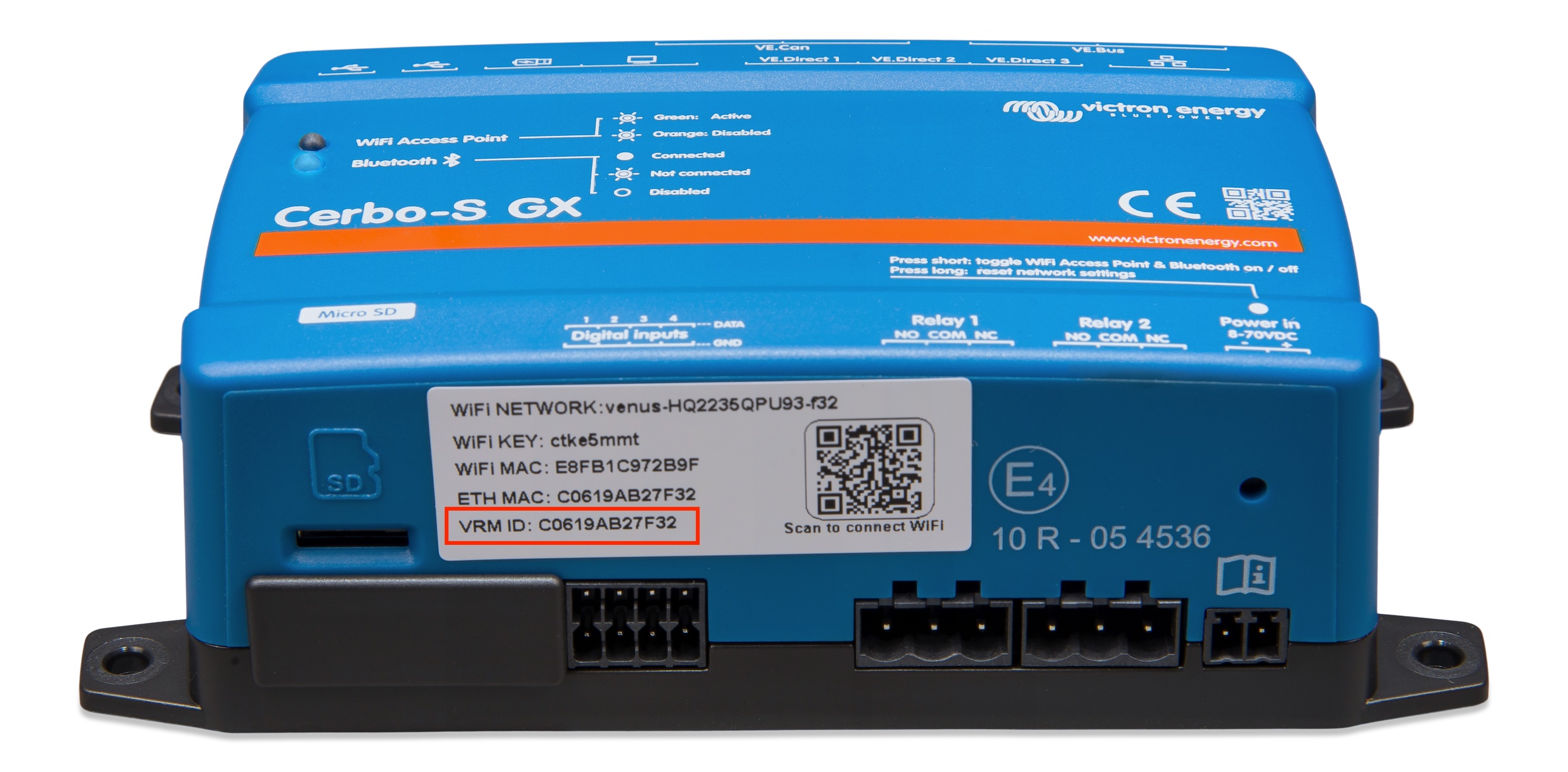
On the GX screen at your system go to Settings → VRM online portal and note the VRM Portal ID. On a Cerbo GX it's also printed on the label on the side.
4
Add your installation
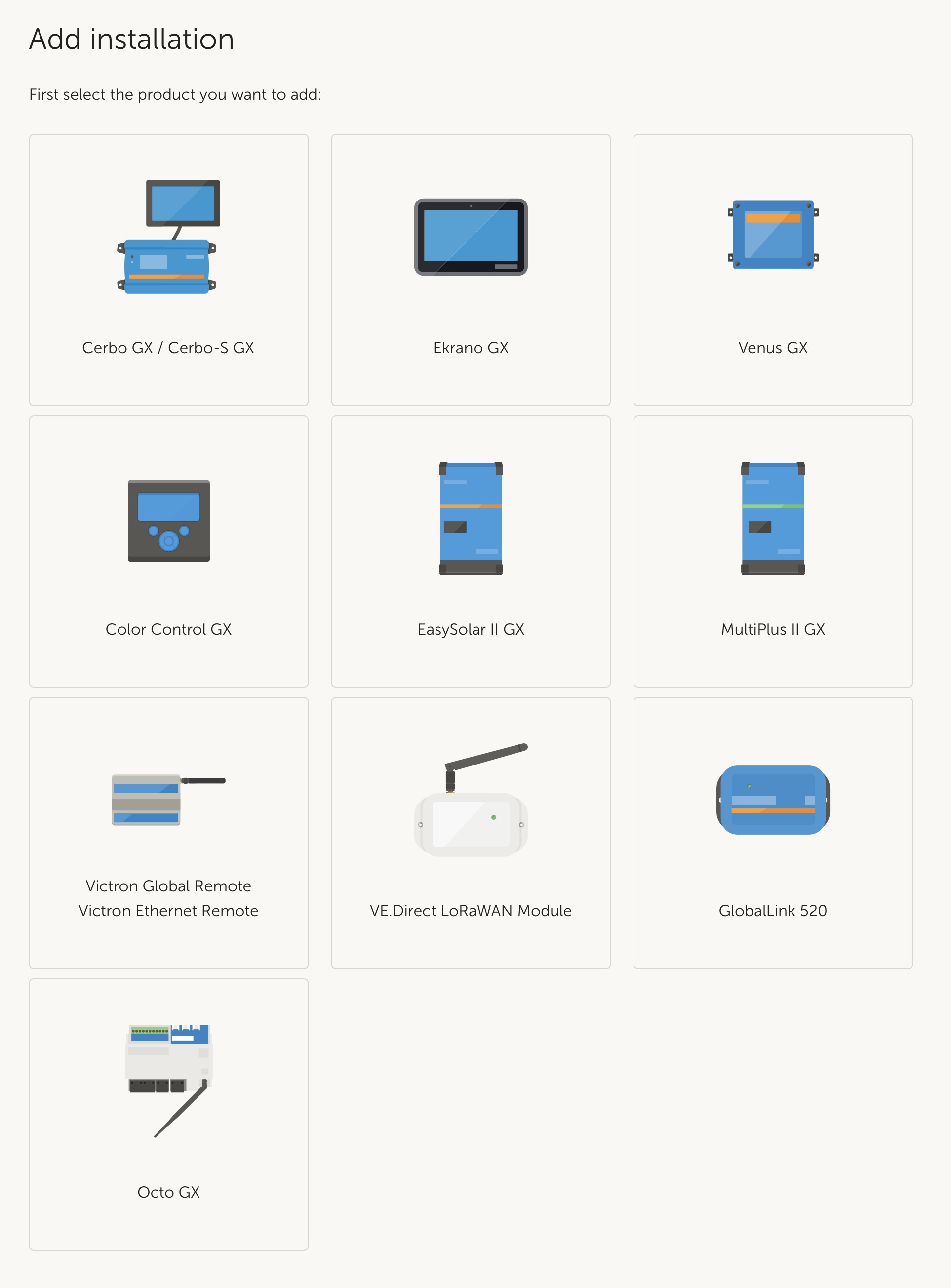
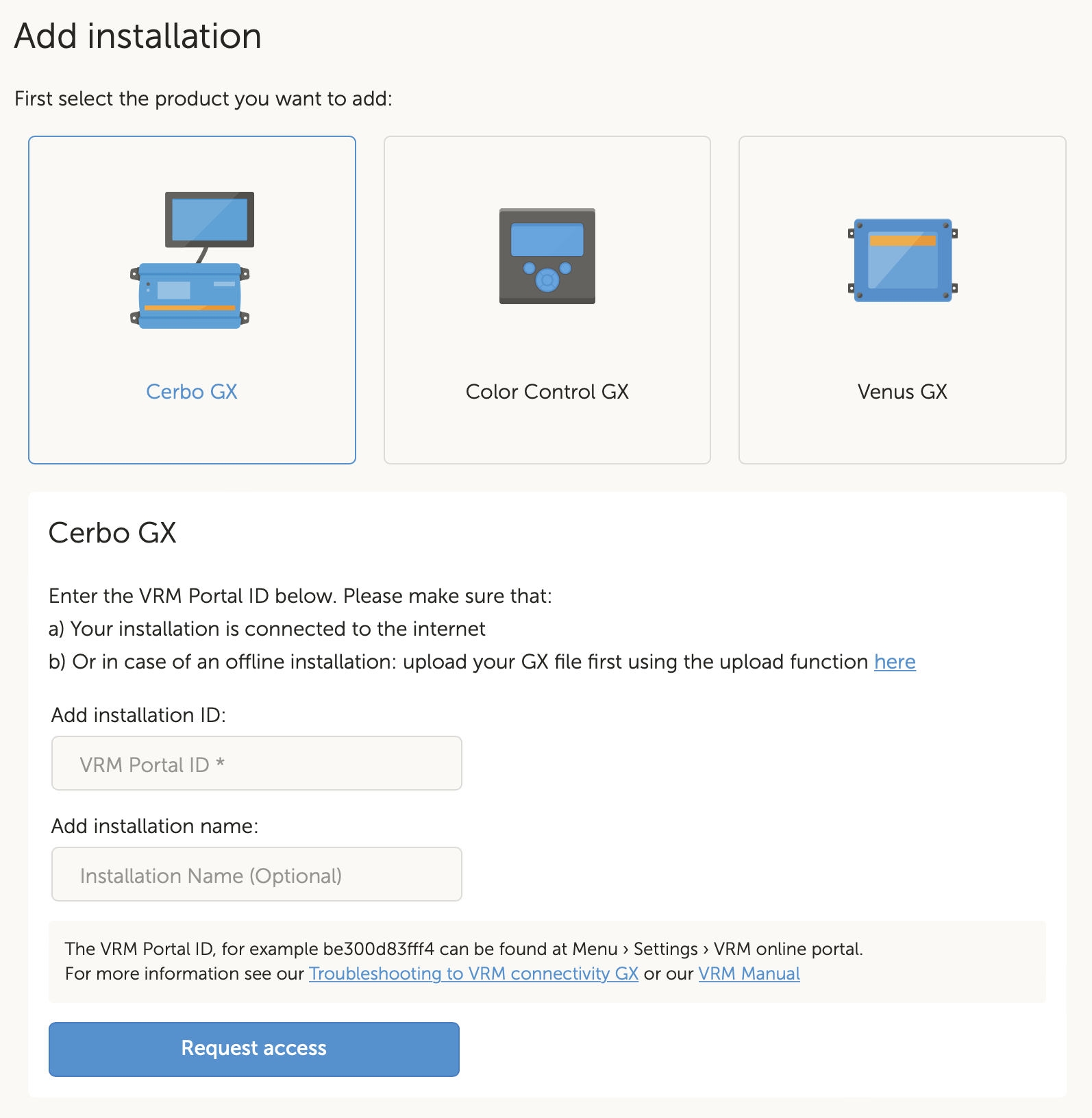
Log in, choose Add installation, then pick your device type (usually a GX device).
5
Enter the ID and tap Request access
Type your VRM Portal ID and tap Request access. If you're the first to add the system you become its admin straight away; otherwise the current admin is emailed to approve you.
6
Open it in the app
Log in to the VRM app and tap your installation.
Tip: Add a VRM widget to your phone's home screen (long-press the home screen → add widget → VRM) and allow notifications so alarms like low battery reach you.
"Installation could not be found"? The system must be online. On the GX screen, Settings → VRM online portal should show the connection as OK.
Stuck? No problem — call the WISE team on 1300 368 331 and we'll talk you through it, or send you an invitation so you can use Pathway A.
Two simple pathways to get Victron VRM monitoring on your phone: invited by your installer, or setting up from scratch with your VRM Portal ID.
Commenting is not enabled on this course.